Clarity Go Mobile App
Android User Guide
Your business phone, wherever you go.
Scan to download from
the Google Play Store:
Welcome to Clarity Go
Clarity Go is our next-generation mobile app, designed to keep
you connected to your business phone system from anywhere.
Whether you are at
your desk, on the road, or working from home, Clarity Go gives you the tools to
stay productive and responsive.
With Clarity Go, you can:
- Make and receive calls from your business line
- Access Voicemails
- Transfer calls and set up conference calls
- View call history and missed calls
- Chat with internal contacts
- Send and receive text messages (SMS/MMS) if texting is
enabled on your extension
- Manage your Settings, Preferences, and Do Not Disturb
Clarity Go is available for both Android and iOS devices. This
guide covers the Android experience.
The Clarity Office Anywhere Mobile App has been replaced by the Clarity Go Mobile App.
Need help adding the Clarity Go Mobile App to your Routing? Feel free to call us at 800-676-3995!
If you prefer to submit an online request, click here!
How To Video
How Do I Get Clarity Go for Android?
Clarity Go is available for free in the Google Play Store.
1. On your Android device, open the Google Play Store.
2. Search for Clarity Go.
3. Find Clarity Go in the search results and tap Install
to download.
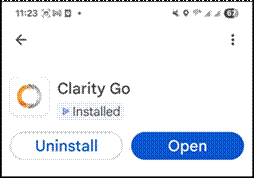
4. Once the download is complete, tap Open or find the
Clarity Go app on your home screen.
How Do I Log In?
Open the Clarity Go app. You will see the Sign In screen.
Enter your Username and Password. Your username is your extension number, the @ symbol, and your domain name.
For example: 200@domain. Your password is the same as your Clarity Portal extension password.
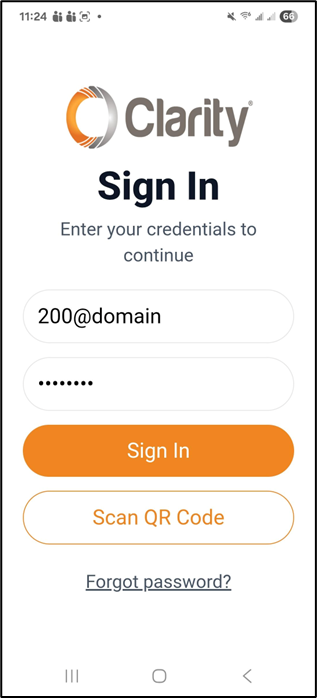
You also have the option to Sign In by scanning a QR code, or you can tap Forgot password? if you need to reset your credentials.
Tap Sign In.
Allowing App Permissions
The first time you log in (or after reinstalling the app), Clarity Go will walk you through a series of permission screens. These permissions allow the app to function properly for
calling, contact lookup, Bluetooth audio, and incoming call alerts.
On Android, each permission has a Grant screen explaining what
the permission is for, followed by a system confirmation prompt.
- Tap Grant,
then tap Allow for each one.
Notification Permission
Clarity Go needs notification access so you can receive alerts
for incoming calls and messages.
- Tap Grant, then tap Allow when the system
prompt appears.
Microphone Access
The app needs microphone access to place and receive voice
calls. This is used only to send your voice during a call.
- Tap Grant, then
select While using the app when prompted.
Phone Permission
This permission allows you to dial cellular (GSM) numbers from the
app.
- Tap Grant to allow.
Clarity Go needs contacts access to display your contacts
within the app. Tap Grant, then tap Allow when the system prompt appears.
Nearby Devices (Bluetooth) Permission
This permission allows the app to search for and connect to
Bluetooth audio devices, such as headsets or speakerphones. Tap Grant, then tap
Allow when prompted.
Note: If
you accidentally tap Don't Allow for any permission, you can enable it later in
your Android device Settings under Apps, then Clarity Go, then Permissions.
Navigating the App
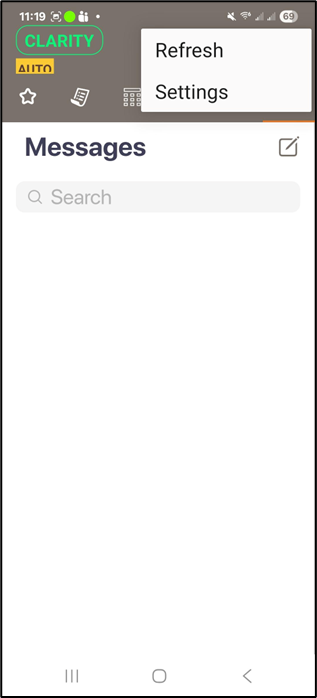
Clarity Go on Android uses a top navigation bar with six tabs.
You can also access Settings and Refresh by tapping the three-dot menu in the
upper right corner.
|
Tab
|
Description
|
|
Favorites (star)
|
Access your saved favorite
contacts for quick calling.
|
|
Call Log
|
View your call history,
including all calls, missed calls, and voicemails.
|
|
Keypad
|
Open the dial pad to
manually enter a phone number and place a call.
|
|
Contacts
|
Browse and search your
contacts from your domain and phone.
|
|
Clarity Portal
|
Access the Clarity Portal
directly from the app to manage your extension settings.
|
|
Messages
|
View and send Chat messages
and SMS/MMS texts.
|
Making a Call
To place a call, tap the Keypad tab in the top navigation bar. Enter the phone number using the dial pad, then tap the green phone icon to
begin the call.
You can also place calls directly from your Contacts or Call
Log by tapping the phone icon next to any entry.
Note: The
orange voicemail icon at the bottom left of the keypad provides quick access to
your voicemail. A red badge will appear when you have new voicemail messages
waiting.
Receiving Inbound Calls
If your extension is set up to route calls to the Clarity Go
app, you will receive incoming call notifications on your Android device. The
notification will display the caller's name (if available) along with Decline
and Answer buttons.
- Note: If you are uninstalling the Clarity Office Anywhere Mobile App and installing the new Clarity Go Mobile App, you must add the correct Device into your Call Routing if you would like to receive inbound calls to the Clarity Go Mobile App.
The Clarity Go Mobile App uses the suffix (g), for example 200g.
If you are inside the app when the call comes in:
If you are on your home screen or in another app:
Tap Answer to accept the call, or tap Decline to reject it. If
you decline, the call will continue to ring other devices in your routing.
Note: For
the best experience with inbound calls, set Clarity Go to display over other
apps in your Android device Settings under Apps, then Clarity Go, then Display
over other apps. This ensures you see the incoming call notification even when
the app is in the background.
Options During Active Calls
When a call is in progress, the active call screen displays
the caller's name or number, the call status, and a timer.
You also have access
to several options:
|
Option
|
Description
|
|
Home
|
Return to the app's main
screen while keeping the call active.
|
|
Mute
|
Mute your microphone. You
will still be able to hear the other party.
|
|
Speaker
|
Toggle the speakerphone on
or off.
|
|
Video
|
Toggle video on or off (if
supported).
|
|
Keypad
|
Open the dial pad to press
numbers during the call (for example, to navigate a phone menu).
|
|
Hold
|
Place the call on hold.
Your domain's Music on Hold will play for the other party.
|
|
Transfer
|
Transfer the call to
another number or contact (blind transfer).
|
|
Add Call
|
Add another person to the
call to create a conference call.
|
|
Attended Transfer
|
Speak with the transfer
destination before completing the transfer.
|
|
End Call
|
End the active call.
|
Tap the info icon (i) in the upper right of the active call
screen to view call details such as signal strength, network, codecs, and
jitter.
Transferring a Call
During an active call, tap Transfer to perform a Blind transfer (also known as Cold), or tap Attended Transfer to speak with the destination first.
When
you tap Transfer, the call is placed on hold while you enter the destination
number or select a contact.
The transfer bar at the top of the screen shows On
Hold, Cancel, and Transfer options.
Call Log
The Call Log tab gives you a complete view of your extension's
call activity.
- You can toggle between three views using the tabs at the top of
the screen.
Shows all calls for your extension, including the Caller ID
(if available), the call status, and the date or time of the call.
Shows calls that were not answered.
- Missed calls are displayed
in red for quick identification.
- Tap any entry to return the call or tap the
info icon for additional details.
Voicemails
Shows voicemail messages left for your extension.
- Tap any voicemail to listen and view details such as the date, time, duration, and caller information.
The Contacts tab lets you browse and search your available contacts.
At the top of the screen, you can switch between contact sources using toggling the current tab to open the dropdown of other options:
Address Book: Contacts synced from your phone
Office 365: Contacts from your Office 365 account, if connected
Web Service: Contacts from Clarity Portal, including internal domain extensions
Each Contact shows quick action icons for calling, starting a video call, and sending a message.
Chat and Texting (SMS/MMS)
Clarity Go supports both internal Chat and external SMS/MMS
texting from the Messages tab.
Messages View
Tap the Messages tab in the top navigation to view your message threads.
- SMS
conversations are labeled with a pink or purple SMS badge, and internal Chat
threads show the extension number.
- You can search existing conversations using
the search bar at the top.
Starting a New Message
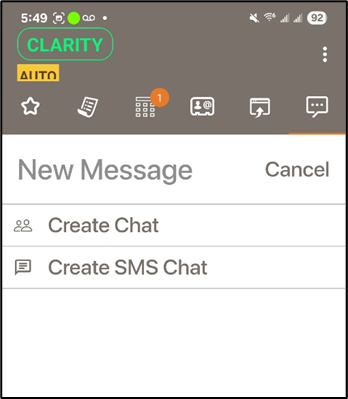
Tap the compose icon (pencil) in the upper right to start a
new message.
You will see two options:
• Create Chat: Send a message to an internal contact
(another extension on your domain).
• Create SMS Chat: Send a text message to an external
phone number. This option is available if a registered texting number is
assigned to your extension.
Sending an SMS Text
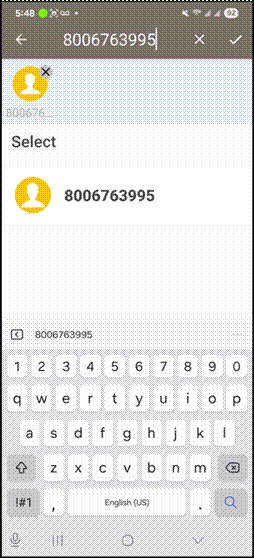
- After selecting Create SMS Chat, type in the phone number or
select a contact.
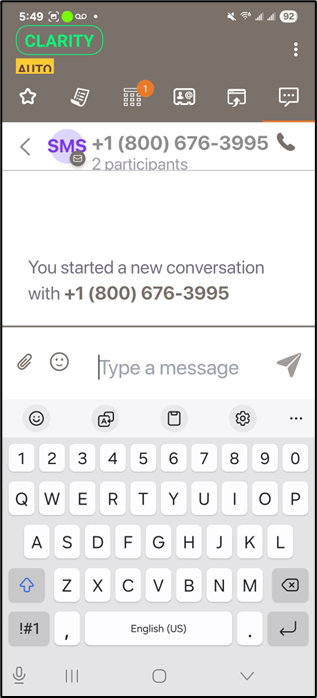
- Tap the checkmark to confirm your selection. You will then see the conversation view.
- Type your message in
the text field at the bottom and tap the send icon to deliver it. You can also
attach files using the paperclip icon.
Note:
Supported file types for MMS are .jpeg, .jpg, .png, .gif, and .mp4 video. Most carriers allow files up to 1MB in size.
Clarity Portal Access
Clarity Go includes a built-in link to the Clarity Portal.
- You can access it by tapping the Clarity Portal tab in the top navigation.
- From here, you can log in to the Portal to manage your extension settings, answering rules, voicemail greetings, and more.
Your Portal login credentials are the same as your Clarity Go login. You can also sign in with Office 365 if that option is configured for your account.
Settings
To access your Clarity Go settings, tap the three-dot menu in
the upper right corner of the app and select Settings.
- The Settings screen is
organized into the following sections:
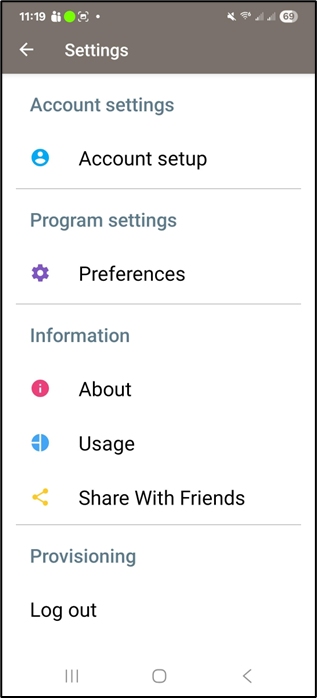
Account Setup
View and manage your account configuration.
- The default
settings work for most users. Only make changes here if you have been advised to do so.
Preferences
Customize your app experience.
- Preferences are organized into
several categories:
• Sound Preferences: Set your ringtone and sound
settings.
• Number Rewriting: Configure how phone numbers are
formatted.
• Network: Manage network-related settings.
• Other: Call Forwarding, Contact Sort Order, Controls,
and Do Not Disturb.
Do Not Disturb
When enabled, Do Not Disturb will silently reject all incoming
calls.
- Rejected calls will appear as missed in your call history, and sound
notifications for incoming messages will also be suppressed.
- You can access Do
Not Disturb from Preferences under the Other section.
About
View your app version, submit log files to Clarity Voice if
requested by our support team, and access the Privacy Policy.
Usage
View your talk time and call count statistics for the current
month, previous month, and total.
You can reset these counters at any time
using the Reset button.
Share With Friends
Share the Clarity Go app with colleagues or contacts directly
from the Settings screen.
Log Out
Use Log Out to sign out of the app.
- Depending on your needs,
you may choose to stay logged in at all times, or log in and out as your
availability changes.
Want to know more about the Mobile App?
Give our Customer Service Team a call at 1-800-676-3995! We are available Monday-Friday 8am-9pm EST.
Prefer to open a Request? Click
here to open a
Ticket Request!
We’re here to help you find better, easier ways to run your business.